Designing a WordPress template is one of the most valuable skills for bloggers, developers, and website owners alike. Whether you want to build a custom theme for your own site, sell templates, or simply understand how WordPress layouts work, this guide covers everything from foundational theory to coding, tools, advanced design best practices, SEO optimization, and real‑world examples. After reading this, you’ll have the knowledge to design, build, and optimize responsive WordPress templates that perform well in 2026 and beyond.
Why WordPress Template Design Matters in 2026
A WordPress template, often called a theme, determines how your website looks, performs, and interacts with users. It’s not just about visuals; a well‑designed template impacts:
- Performance & Speed: Fast loading improves user experience and SEO.
- SEO & Indexing: Templates with clean HTML, CSS, and schema markup help search engines crawl and rank content faster.
- Responsive Design: Templates must render correctly on mobile, tablet, and desktop.
- Branding & UX: Visual identity, typography, and layout contribute to trust and engagement.
- Scalability: Custom WordPress templates can adapt to future needs like e‑commerce, multilingual support, or dynamic content.
In 2026, with mobile usage and Core Web Vitals being ranking factors in Google, designing the right WordPress template is more important than ever.
What Is a WordPress Template?
In WordPress, a template refers to a specific layout file that determines how a page or a section displays. WordPress uses a template hierarchy, a priority system that chooses the correct template file for content rendering (e.g., home page, single post, category archive, search results).
Core template files include:
- index.php – fallback template
- header.php – site header
- footer.php – site footer
- style.css – theme stylesheet
- single.php – blog post layout
- page.php – static page layout
Understanding this hierarchy and structure is key to mastering template design.
Step‑by‑Step Guide: How to Design a WordPress Template
Below is a complete step‑by‑step tutorial to design your custom WordPress template from scratch.
1. Preparation: Tools You’ll Need
Before writing any code or designing layouts, choose your tools:
Design & Prototyping
- Figma
- Adobe XD
- Sketch
Code Editor
- VS Code (Visual Studio Code)
- Sublime Text
Version Control
- Git / GitHub
Local Development
- LocalWP
- XAMPP / MAMP
Page Builders (optional)
- Elementor
- Gutenberg
- Beaver Builder
2. Research and Planning
Ask the following questions before you start:
- What content types will your template support?
- Should it be e‑commerce ready?
- What layout styles do you prefer (boxed, full-width, centered)?
- What typography and color schemes match your brand?
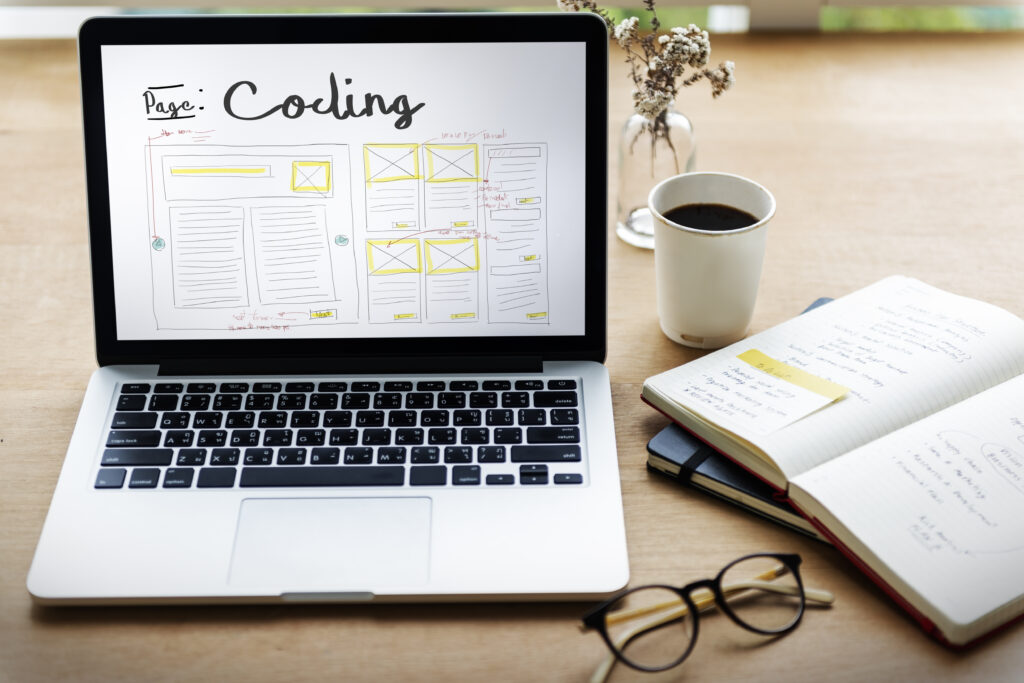
Create a rough wireframe of your primary layout, including header, footer, sidebar, and blog section.
3. Template Directory Structure
Create a folder in /wp-content/themes/ with your theme name (e.g., my‑custom‑template). Include these essential files:
my-custom-template/
├── index.php
├── style.css
├── functions.php
├── header.php
├── footer.php
├── sidebar.php
├── page.php
├── single.php
style.css should include theme metadata:
/*
Theme Name: My Custom WordPress Template
Author: Your Name
Version: 1.0
*/
4. HTML, CSS & PHP Integration
Combine HTML structure with PHP functions to pull dynamic content.
Example: header template (header.php):
<!DOCTYPE html>
<html <?php language_attributes(); ?>>
<head>
<meta charset=”<?php bloginfo(‘charset’); ?>”>
<?php wp_head(); ?>
</head>
<body <?php body_class(); ?>>
<header>
<h1><a href=”<?php echo home_url(); ?>”><?php bloginfo(‘name’); ?></a></h1>
<?php wp_nav_menu(array(‘theme_location’=>’main_menu’)); ?>
</header>
This uses:
- bloginfo() for site title and charset
- wp_head() for scripts and styles
- wp_nav_menu() to display navigation
5. Styling: Typography, Colors, and Layout
Use CSS for basic styling and responsive design:
body {
font-family: Arial, sans-serif;
line-height: 1.6;
}
@media (max-width: 768px) {
header, footer {
text-align: center;
}
}
Consider using CSS Variables for color palettes:
:root {
–primary-color: #2a2a2a;
–accent-color: #0099ff;
}
This improves maintainability and allows easy global updates.
6. Adding Template Functions (functions.php)
Use functions.php to register menus, styles, and scripts:
function my_template_setup() {
add_theme_support(‘title-tag’);
add_theme_support(‘post-thumbnails’);
register_nav_menus(array(
‘main_menu’ => ‘Main Menu’,
‘footer_menu’ => ‘Footer Menu’,
));
}
add_action(‘after_setup_theme’, ‘my_template_setup’);
function my_template_scripts() {
wp_enqueue_style(‘style’, get_stylesheet_uri());
}
add_action(‘wp_enqueue_scripts’, ‘my_template_scripts’);
This enables:
- Dynamic title tags
- Featured images
- Custom menus
7. Sidebar, Widgets, and Dynamic Content
WordPress widgets allow for flexible content blocks.
In functions.php:
function my_template_widgets_init() {
register_sidebar(array(
‘name’ => ‘Blog Sidebar’,
‘id’ => ‘blog_sidebar’,
‘before_widget’ => ‘<div class=”widget”>’,
‘after_widget’ => ‘</div>’
));
}
add_action(‘widgets_init’, ‘my_template_widgets_init’);
Display sidebar in sidebar.php:
<?php if (is_active_sidebar(‘blog_sidebar’)) : ?>
<?php dynamic_sidebar(‘blog_sidebar’); ?>
<?php endif; ?>
Responsive Design Best Practices
Mobile users dominate web traffic. Follow responsive principles:
- Fluid grids and percentages
- Media queries for breakpoints
- Optimized images (WebP format)
- Accessible content (aria labels, readable fonts)
Ensure your WordPress template passes Google’s Mobile‑Friendly Test.
Making Your Template SEO‑Friendly
To rank well, templates must be:
- Clean and semantic: Use proper heading tags (<h1>, <h2>).
- Schema enabled: Add structured data for articles and breadcrumbs.
- Fast loading: Minimize CSS and JavaScript; lazy‑load images.
- Responsive: Mobile design impacts search ranking.
Integrate schema.org markup in template files where relevant.
Using Page Builders With Custom Templates
Page builders let designers create templates visually:
Gutenberg
- Native WordPress editor
- Block‑based design
- Good for theme blocks and patterns
Elementor
- Drag‑and‑drop
- Pre‑built templates
- Works with Hello Elementor theme
Beaver Builder
- Stable and flexible
- Developer‑friendly
Page builders simplify design without coding but can add extra CSS/JS, so use them judiciously for performance.
Advanced Topics in WordPress Template Design
1. Custom Post Types & Template Parts
Create custom layouts for different content types (like portfolio, products, testimonials). Use:
register_post_type(‘portfolio’, array( … ));
Modify templates accordingly.
2. Gutenberg Full Site Editing (FSE)
With Block Themes and FSE, you can design entire templates using blocks instead of PHP.
Use:
- theme.json for settings
- Block templates (template‑parts/header.html)
This modern approach simplifies template design and allows live editing.
Tools & Resources for WordPress Template Designers
Design Tools
- Figma
- Adobe XD
- Canva
Development Tools
- VS Code
- GitHub
Testing & Optimization
- Google PageSpeed Insights
- Lighthouse
- Browser DevTools
These tools improve workflow, design precision, and performance analysis.
Spotlight: SiteGenixPro, Your WordPress & Web Design Partner
While learning to design your own WordPress template empowers you with control and creativity, many bloggers, business owners, and developers benefit from professional support. SiteGenixPro is a UK‑based web development and digital services company specializing in:
What They Do
- Custom WordPress Development: Tailored templates and theme customizations designed for performance and scalability.
- SEO Services: Technical SEO, content strategy, speed optimization, and on‑page improvements are critical for high‑ranking blogs and business sites.
- Graphic Design: Logo design, branding assets, visuals that align with your template design and brand identity.
- Digital Strategy: Growth planning, analytics, UX improvements, and conversion optimization.
Partnering with SiteGenixPro can help you turn your custom template into a fully optimized, high‑performing site, especially if you want to focus on content and conversion rather than backend web development.
Final Thoughts
Designing a WordPress template in 2026 combines creativity, technical knowledge, and modern best practices. Whether you’re:
Building a personal blog
Designing professional portfolios
Creating themes to sell
Or enhancing business sites
This guide has equipped you with the tools, steps, and best practices you need to succeed. Start with planning and design, follow coding and WordPress standards, optimize for speed and SEO, and test thoroughly across devices.
With this foundation, plus advanced techniques and modern trends, you can create responsive, beautiful, and performant WordPress templates that engage users and rank well in search engines.